
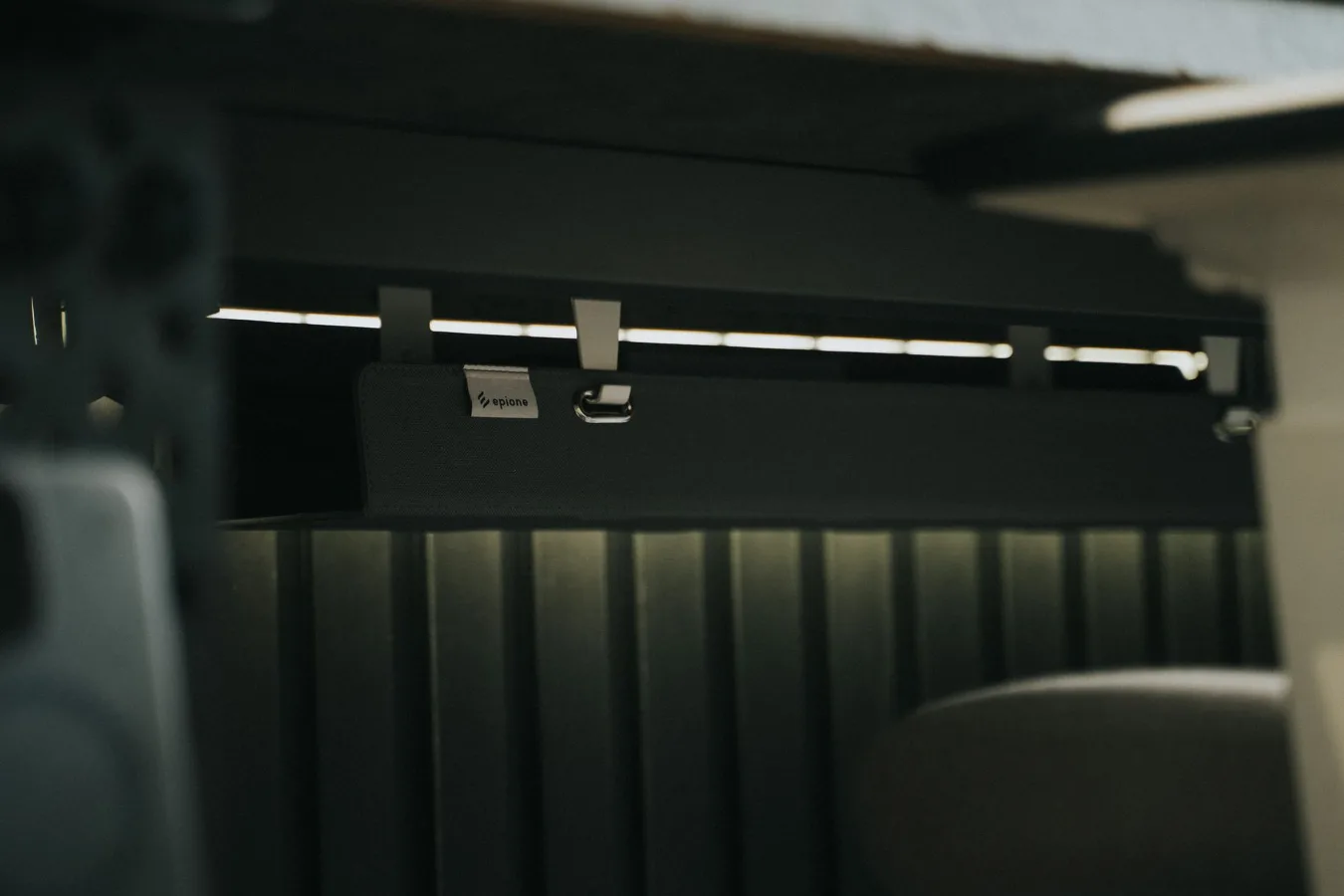
An under desk computer mount is a practical way to lift a desktop tower off the floor and attach it beneath a work surface. For many workspaces, that means more usable floor space, fewer cables dragging across the room, and less risk of the computer collecting dust, pet hair, or accidental bumps.
The best choice is not simply the strongest bracket or the cheapest one. It is the mount that fits your case dimensions, supports your desk material, leaves enough room for airflow, and still lets you reach the power button, USB ports, and front panel when you need them.
When an under desk computer mount makes sense
This accessory is most useful when a tower sits on the floor and gets in the way of daily movement, vacuuming, or cable management. It also makes sense in compact home offices, shared workstations, and standing desk setups where keeping the computer off the floor helps the area feel less crowded.
It can be a smart solution if you want a cleaner look without moving to a compact PC or all-in-one system. For many desks, the mount is a simple furniture upgrade that improves organization without changing the rest of the setup.
That said, an under desk computer mount is not automatically the best answer for every workstation. If your tower is unusually heavy, has side vents that need open space, or you regularly swap cables in and out, another placement option may be more practical.
Step-by-step criteria for choosing the right mount
1. Check the case dimensions first
The most common mistake is buying a mount based on the desk rather than the computer case. Measure the tower’s width, depth, and height, then compare those dimensions with the mount’s stated adjustment range. Leave a little room for the feet, side panels, and any protruding handles or cable connectors.
If the case is close to the mount’s limit, installation may still be possible, but everyday use can become awkward. A snug fit can make it harder to route cables, clean around the machine, or open side panels for upgrades and maintenance.
2. Match the mount to the desk material and structure
Not every desk is built the same way. A solid wood or metal desk frame may handle a mounted tower differently than a thin laminate top or hollow-core construction. The real question is not just whether the mount can attach, but whether the desk can handle the load safely over time. solid wood computer desk offers more detail on this point.
Look at where the hardware will be installed. Some desks have a sturdy frame or crossbar that offers a better anchor point than the underside of the tabletop alone. If the desk has a modest structure, a wall-mounted or floor-standing solution may be the safer choice.
3. Leave room for airflow and heat
Computers need breathing room. A mount that traps the tower too tightly against the underside of the desk can block side vents, rear exhaust, or intake openings. Even when the case still fits, restricted airflow can be a hidden drawback.
Before choosing a mount, identify where the case pulls air in and pushes it out. If the fans face the desk surface or a nearby panel, look for a design that leaves clearance on the vented sides. This is especially important for gaming towers, workstation PCs, and any system that runs under sustained load. Arozzi Gaming Chair Buyer’s Guide offers more detail on this point.
4. Think about access, not just storage
A good under desk computer mount should make the tower easier to live with, not harder to use. Consider how often you reach for the power button, USB ports, audio jack, or optical drive. If the mount places those controls in a cramped spot, the setup may feel neat but inconvenient.
Also think about future access. Swapping a GPU cable, checking a drive, or plugging in a headset should not require you to kneel awkwardly every time. A mount that swings, slides, or leaves room for hand access can be more useful than a rigid bracket that hugs the case too closely.
5. Review the mounting style
Different designs solve different problems. Fixed brackets are often simpler and can be a tidy fit for a stationary workstation. Swivel or slide-out designs can improve access and make maintenance easier. Some models are more adjustable than others, which matters if your computer case has unusual proportions.
The right style depends on your priorities. If your goal is mainly floor clearance, a basic fixed mount may be enough. If your workstation is crowded or your tower needs occasional access, a more flexible design can justify the extra complexity.
Common misconceptions that lead to bad purchases
“Any mount that fits the tower will work.” Fit is only part of the equation. A mount also has to work with the desk structure, cable routing, airflow, and daily access.
“A heavier mount is always better.” Weight alone does not tell you whether the mount is appropriate. What matters is whether the hardware, desk, and case are compatible as a system.
“Hiding the PC under the desk automatically improves the setup.” Sometimes it does, but not if the tower becomes harder to reach, noisier because of poor airflow, or more difficult to service.
Practical benefits to weigh against the trade-offs
The main appeal of an under desk computer mount is organization. Moving the tower off the floor can open space for a footrest, a chair that rolls more freely, or a cleaner path for vacuuming and cable work. It can also keep the case away from spills and everyday foot traffic.
There are trade-offs, though. Once mounted, the computer may be less convenient to reposition. If your setup changes often, the bracket may become a limitation rather than a convenience. Some users also find that the tower becomes more noticeable if it sits at knee level, especially in tight spaces.
A useful way to think about the purchase is to ask whether you value organization and clearance more than easy physical access. If the first priority wins, an under desk mount is often a good fit. If access matters more, a rolling CPU stand or a nearby shelf may be better.
Examples of the best-fit use cases
Home office with limited floor space
If the tower competes with legroom, a mount can create a cleaner footprint. This is especially helpful in smaller rooms where every inch counts and floor-standing equipment tends to collect clutter.
Standing desk with frequent height changes
With a sit-stand desk, keeping the PC attached below the work surface can simplify the layout and reduce the number of items on the floor. The key is making sure the mount and cable slack allow the desk to move freely through its full range.
Shared workstation
In an office shared by more than one person, an under desk mount can make cleaning and cable organization easier. Just make sure there is enough room for different users to reach the power and peripheral connections without awkward stretching.
Gaming or creative workstation
For a performance-oriented PC, airflow and service access should carry more weight than visual neatness alone. A mount can still work well, but it should not crowd side panels, intake filters, or rear ports.
A simple checklist before you buy
- Measure the computer case, including any protrusions.
- Confirm the desk can support the mount and the tower together.
- Check where the case vents air and whether the mount blocks them.
- Make sure you can still reach essential ports and controls.
- Plan cable slack for power, display, USB, and Ethernet connections.
- Decide whether a fixed, slide-out, or swivel style suits your routine.
- Think about maintenance: dusting, upgrades, and side-panel access.
- Consider whether the desk height and legroom will still feel comfortable.
Alternatives worth considering
An under desk computer mount is only one way to improve a workstation. A CPU holder that rests on the floor but raises the tower slightly can help with airflow and cleaning without requiring desk hardware. A rolling computer stand is useful if you need occasional access and want to move the tower for maintenance. A small side cabinet or open shelf can also work when the desk structure is not ideal for mounting.
For very compact setups, downsizing the case or switching to a mini PC may solve the space problem more cleanly than adding hardware under the desk. That option is not right for everyone, but it is worth considering if the current tower is oversized for the room.
Maintenance and long-term use
Once installed, a mount should still allow regular cleaning and inspection. Dust can build up quickly around computer hardware, especially if airflow is restricted or the mount sits near carpet, fabric, or a pet-friendly area.
Check the mounting hardware from time to time to make sure screws remain secure and the bracket has not shifted. If the desk flexes, the mount may need adjustment. Also watch for cable strain after height changes, repositioning, or upgrades to the system.
Long-term value usually comes from a mount that is easy to live with, not just easy to install. If the setup stays tidy, accessible, and ventilated, the accessory has done its job.
What to prioritize if you are comparing options
| Decision factor | What to look for | Why it matters |
|---|---|---|
| Case fit | Adjustable dimensions with a little extra clearance | Prevents a cramped installation |
| Desk compatibility | Hardware suitable for your desk frame and surface | Supports safe, stable mounting |
| Airflow | Open sides and vent clearance | Helps the PC breathe properly |
| Access | Room for ports, power button, and side panels | Makes everyday use easier |
| Mount style | Fixed, swivel, or slide-out depending on workflow | Matches how often you service the tower |
| Cable routing | Space for slack and tidy runs | Reduces strain and clutter |
One decision that saves headaches later
The overlooked detail with an under desk computer mount is not the bracket itself. It is how the tower behaves after installation. A setup can look clean on day one and still become annoying if the ports are hard to reach, the cables are too tight, or the airflow is too restricted. how to organize cables under a desk offers more detail on this point.
If you choose based on the full workstation, not just the case dimensions, the mount becomes a real upgrade rather than a cosmetic add-on. That means checking the desk, the tower, the cables, and your daily habits before you buy.
For readers building out a broader setup, this kind of choice fits naturally alongside other desk organization essentials, office furniture for small spaces, and workspace cable management decisions. A well-planned workstation is usually the result of several small, sensible choices rather than one dramatic change.